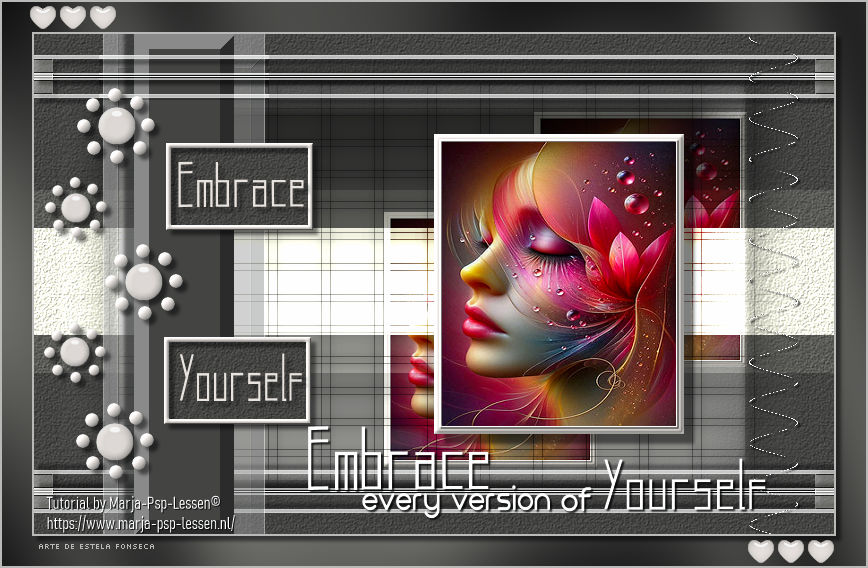
EMBRACE
Tutorial de Marja , original, Aqui.

Tutorial traduzido no PSP 2022 ULTIMATE.
Se você estiver usando uma versão diferente do PSP, as configurações e os efeitos dos plugins podem
produzir um resultado diferente.
Nesse caso, experimente as configurações até obter o resultado desejado.
Materiais Necessários:
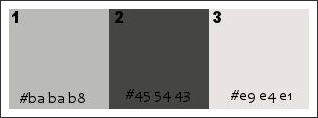
kleurenschema L716
Femme Dreamy
Embrace deco by mpd©
Embrace deco 1 t/m 3
Embrace text by mpd©
PLUGINS:
Unlimited 2.0
Filter Factory Gallery V / Ommadawn*
Italian Editors Effect / Effetto Fantasma
Xero / SoftMood
Toadies / Sucking Toad Bevel II.2*
Graphic Plus / Cross Shadow
*Importados para o Unlimited 2.0
***
CORES:
Primeiro Plano cor 1
Segundo Plano cor 2
***
1. Abra uma nova imagem transparente de 800 x 500 pixels.Pinte com a cor 2.
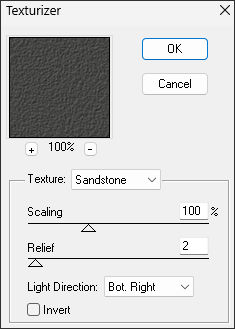
2. Effects / Plugins / Texture / Texturizer
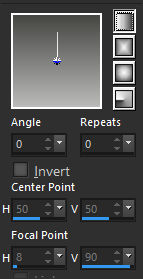
3. Forme no Primeiro Plano um Gradiente Linear Angle 0 / Repeats 0 ... Invert desmarcado:
4. Layers / New Raster LayerPinte com o Gradiente
5. Image / Resize / 85% ... Resize All Layers ... Desmarcado
6. Effects / Plugins / Filters Unlimited 2.0 / Filter Factory Gallery V / Ommadawn / Default
7. Effects / Plugins / Itali@n Editors Effect / Effeto Fantasma: ambos os valores ...20/20
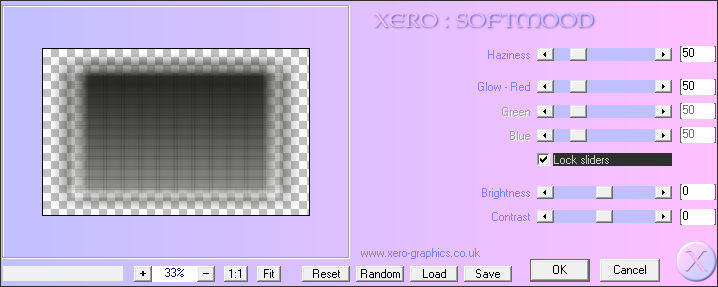
8. Effects / Plugins / Xero / SoftMood ... Default
9. Effects / 3D Effects / Drop Shadow: 5 / 5 / 50 / 5,00 / Cor #000000
10. Selection Tool / Custom Selection:Top: 175
Left: 0
Right: 800
Bottom: 320
11. Layers / New Raster LayerPinte com a cor 1
Selections / Select None
12. Effects / Plugins / Itali@n Editors Effect / Effeto Fantasma ... 20/20Blend Mode / Dodge
13. Segundo Plano cor 3Selection Tool / Custom Selection:
Top: 30
Left: 0
Right: 800
Bottom: 55
14. Layers / New Raster LayerPinte com a cor 3
15. Selections / Modify / Contract: 4Delete no teclado
Selections / Select None
16. Effects / Plugins / Itali@n Editors Effect / Effeto Fantasma ... 10/10
17. Effects / Edge Effects / EnhanceBlend Mode / Luminance
18. Effects / 3D Effects / Drop Shadow: 5 / 5 / 50 / 5,00 / Cor #000000
19. Layers / DuplicateImage / Mirror / Mirror Vertical
Layers / Merge / Merge Down
20. Selection Tool / Custom Selection:
Top: 0
Left: 100
Right: 200
Bottom: 500
21. Segundo Plano cor 2Layers / New Raster Layer
Pinte com a cor 2
22. Effects / Plugins / Texture / Texturizer
23. Effects / Plugins / Filters Unlimited 2.0/ Toadies / Sucking Toad Bevel II.2(todos os 3 valores =>80)
Selections / Select None
24. Layers / DuplicateAtive a Layer imediatamente abaixo ... Raster 5
Effects / Plugins / Itali@n Editors Effect / Effeto Fantasma: Ambos os valores:20
25. Effects / Edge Effects / Enhance
Ative a Layer do topo
Effects / 3D Effects / Drop Shadow: -10 / -10 / 50 / 5,00 / Cor #000000
26. Layers / Merge / Merge DownSelection Tool / Custom Selection:
Top: 20
Left: 65
Right: 235
Bottom: 66
27. Ative a Layer ...Raster 4Selections / Convert selection to Layer
Layers / Arrange / Move Up
Selections / Select None
Blend Mode / Luminance
28. Ative "Embrace deco by mpd©" ...Copie/Cole como nova layer
29. Effects / Image Effects / Offset: -320 / 0 / Custom / Transparent
30. Effects / 3D Effects / Drop Shadow: 5 / 5 / 50 / 5,00 / Cor #000000
31. Ativee "deco 1 by mpd©" ...Copie/Cole como nova layer
32. Effects / Image Effects / Offset: -195 / 0 / Custom / Transparent
33. Effects / 3D Effects / Drop Shadow: 5 / 5 / 50 / 5,00 / Cor #000000
34. Selection Tool / Custom Selection:Top: 100
Left: 400
Right: 650
Bottom: 400
35. Layers / New Raster LayerPinte a seleção com a cor 3
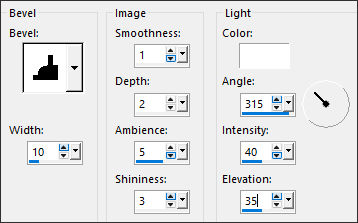
36. Effects / 3D Effects / Inner Bevel:
37. Selections / Modify / Contract: 8Layers / New Raster Layer
38. Ative " Dreamy Woman image" ... Copie/ Cole na seleção
39. Adjust / Sharpen / SharpenSelections / Select None
Layers / Merge / Merge Down
40. Layers / DuplicateImage / Resize / 85% ... Resize All Layers ... Desmarcado
41. Effects / Image Effects / Offset: 100 / 45 / Custom / Transparent
42. Layers / DuplicateEffects / Image Effects / Offset: -150 / -100 / Custom / Transparent
43. Layers / Merge / Merge DownLayers / Arrange / Move Down
Blend Mode / Overlay
44. Ative a layer do TOPO
Effects / 3D Effects / Drop Shadow: 10 / 10 / 50 / 5,00 / Cor #000000
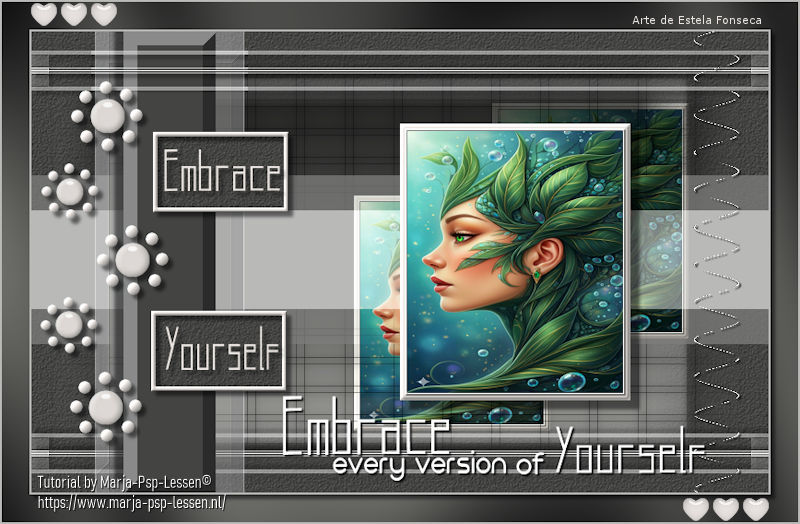
45. Ative "deco 2 by mpd©" ... Copie e cole como nova layerColoque do lado direito ... ver modelo.
46. Ative "Embrace text by mpd©" ... Copie e cole como nova layer
Posicione embaixo ou como preferir...
47. Layers / Merge / Merge allPrimeiro Plano cor 1
48. Image / Add Borders / Symmetric Marcado / 2 pixels cor 1Selections / Select all
49. Image / Add Borders / Symmetric Marcado / 30 pixels cor 2Effects / 3D Effects / Drop Shadow: 5 / 5 / 50 / 5,00 / Cor #000000
50. Selections / Invert
Effects / Plugins / Graphic Plus / Cross Shadow / Default
Selections / Select None
51. Image / Add Borders / Symmetric Marcado / 2 pixels cor 1
52. Image / Resize / 800 pixels ...RESIZE ALL LAYERS MARCADO.
53. Ative "deco 3 by mpd©" ... Copie/Cole como nova layerColoque do lado direito
54. Assine seu trabalhoNão esqueça de colocar também a marca d'água de Marja's)
Layers / Merge / Merge all
Salve como jpg.
Extra: Imagem principal de Pinterest:
©Tutorial traduzido por Estela Fonseca em 16/03/2026.
Não alterar nem repassar sem autorização.